Site Settings
Site Settings
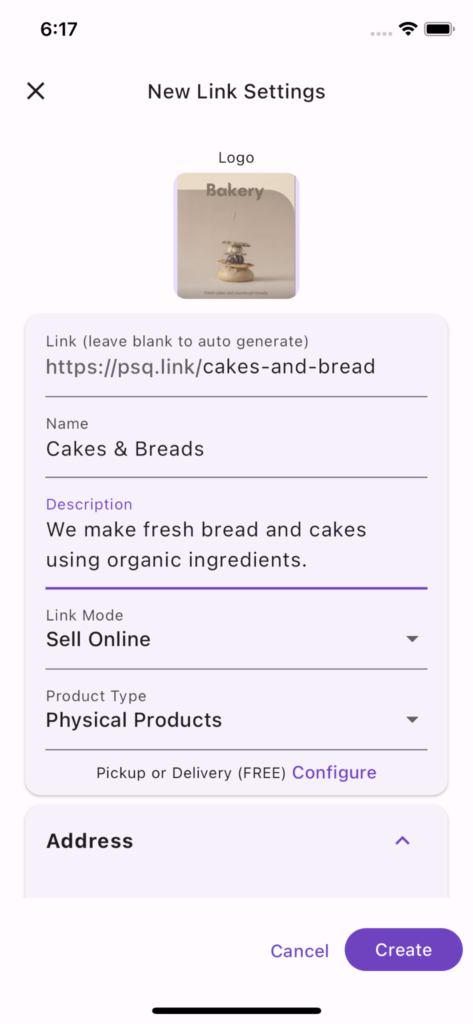
Configure the operational settings for a Pi-Square site.
Basic Settings
Logo
You can provide an image/logo of your store, booking site or service. Providing a logo helps in easier identification.
Site (Required)
Your site address is of the form https://<site_name>.psq.site (for example, https://mystore.psq.site). Choose an available site name of 6–50 letters and numbers. Spaces, hyphens, underscores, dots, and other special characters are not allowed. Avoid changing your site name after sharing it: the old address will stop working and the old site name can be used by someone else.
If you use a custom domain, contact Pi-Square to change it.
Existing businesses using a legacy link of the form https://psq.link/<link_name> can switch to a site in Settings. Choose a site name that meets the site address requirements before saving. The switch from link to site cannot be reversed.
Name (Required)
Mention the name of your store, booking site or service.
Description (Required)
It is the description of your store, booking site or service. Add delivery, payment, return policies etc. in description as applicable.
Site Mode (Required)
-
Online Store: Customers can place order directly.
-
Online Catalog: Customers can browse your products, services or digital goods but cannot place orders directly. You can do billing, payment tracking etc.
-
Business Website: Customers cannot see your catalog. Use this mode for billing, payment tracking etc.
Product Type (Required)
-
Physical Products: Products that required delivery / pickup
-
Digital Goods: Ideal for products that do not required delivery / pickup
-
Appointments: Ideal for appointments
-
Bookings: Ideal for event tickets, stalls etc
-
Donations: Ideal for accepting donations
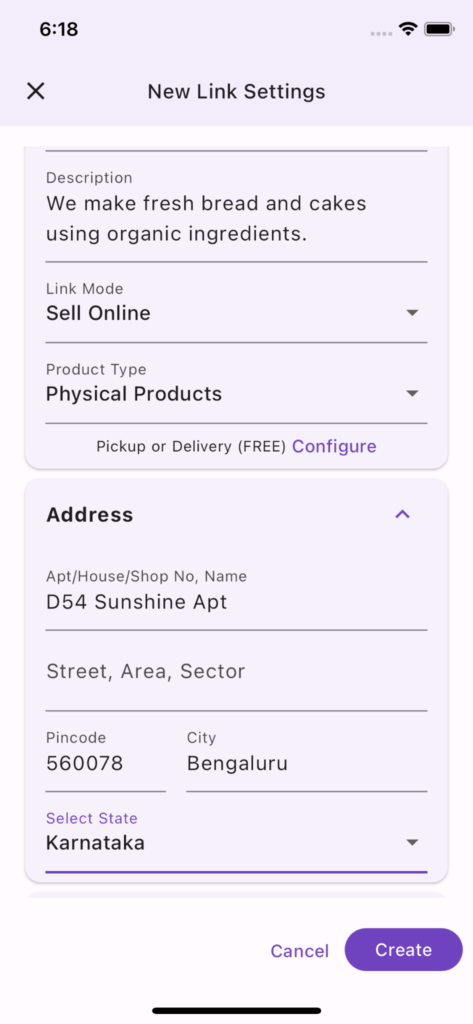
Address (Required)
Address of your store, booking site or service. It can also be a home or office address.
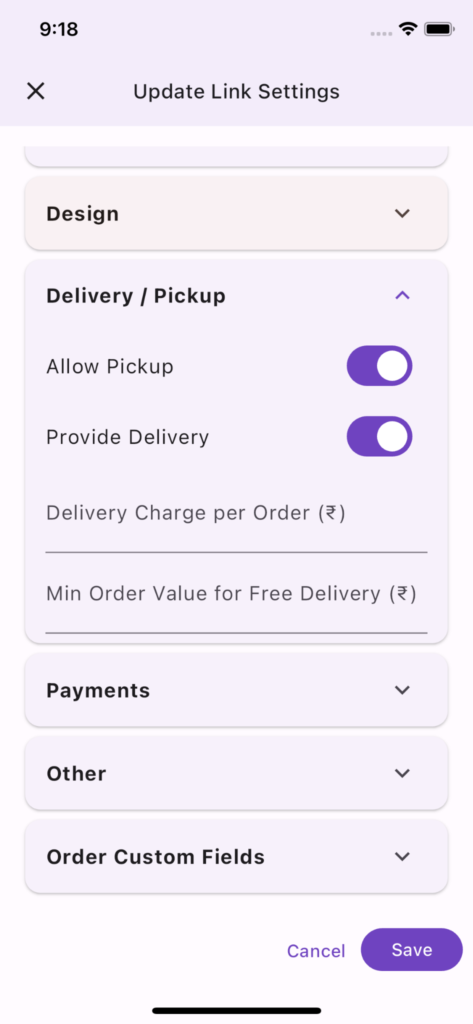
Delivery / Pickup
Choose pickup, delivery or both depending on options you want to provide to your customer. You need to choose at least one one option from pickup or delivery.
For delivery, you can mention delivery charge per order and minimum order value for free delivery if applicable.
Orders & Invoicing
Generate Bill/Invoice
Enable this to automatically generate invoice link for the customers
Invoice Signature
You can provide a invoice signature image if you need your signature to be included in invoice.
Max Items Per Order
This can be used to restrict the number of items per order. Leave empty to disable to this check. This can be useful for events where you want to restrict max number of passes anyone can buy.
Max Qty Per Item Per Order
This can be used to restrict the quantity per item in an order. Leave empty to disable to this check.
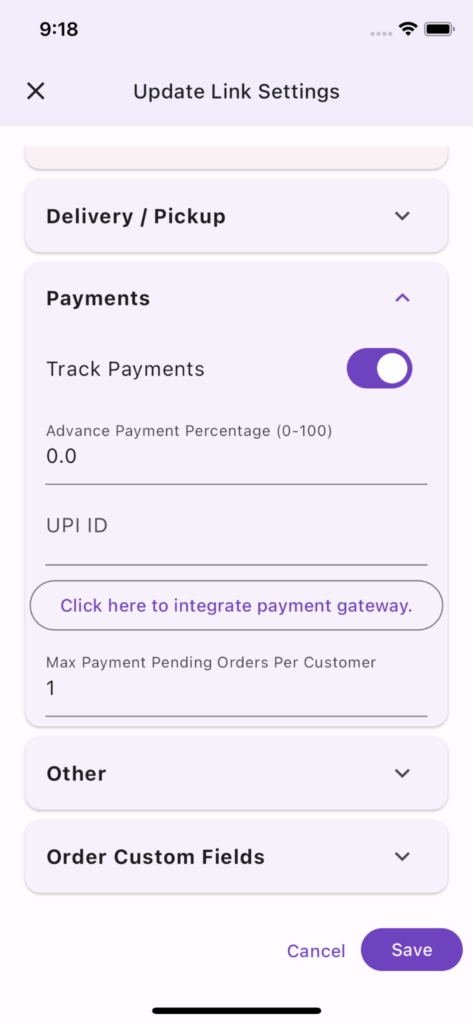
Payments
Track Payments
Turn this off if you do not need to track payments.
Advance Payment Percentage
Leave this 0 to allow Payment on Pickup/Delivery. You can choose a value between 0 and 100.
UPI ID
(Not required when using payment gateway)
Providing UPI ID will allow customers to pay you using UPI. However, you will need to track and acknowledge every payment. This payment mechanism is FREE. However, customer experience is not good as they need to scan the QR or copy the UPI ID to make the payment. Also, site owner/staff needs to manually confirm the payment. This is reasonable method for businesses selling locally or businesses selling within a circle of trust, but if you are selling pan India this is not a recommended approach.
Integrate Payment Gateway
Using payment gateway helps automatic tracking of payment. This is useful if you get large number of orders on a daily basis. Payment gateway also allows to accept more payment modes like credit cards, net banking etc. Pi-Square is integrated with Razorpay and Cashfree, any payment gateway charges are payable directly to the payment gateway. Refer here for more information on payments. (Note: payment gateway integration is allowed only after you create the Site.)
Max Payment Pending Orders Per Customer
This is a simple mechanism for fraud prevention. This is set to one by default, which means customer cannot place another order until their previous payment dues are clear. Leave this blank if you do not wish to impose this restriction.
Chat
Enable Pi-SQuare Chat
You can use this to turn on/off the chat feature. If turned off, Pi-Square defaults to using WhatsApp chat.
Growth
Enable Discovery
Turn this on if you want your store, booking site, or service page to be easier to find through Pi-Square search. Enabling discovery helps customers reach your business site when they search for relevant options. Once you enable discovery the lock appearing on the side of your Site will disappear.
Recommendations
Turn this on if you want to increase your average order value. When turned on, recommendations are shown to the buyer during the checkout flow. You pay only a percentage on additional sales generated through this.
WhatsApp Business
Integrate your WhatsApp Business if you want to increase your average order value using WhatsApp upsells. When enabled, Pi-Square can show relevant add-ons during WhatsApp ordering. You pay only a percentage on additional sales generated through this.
Order Custom Fields
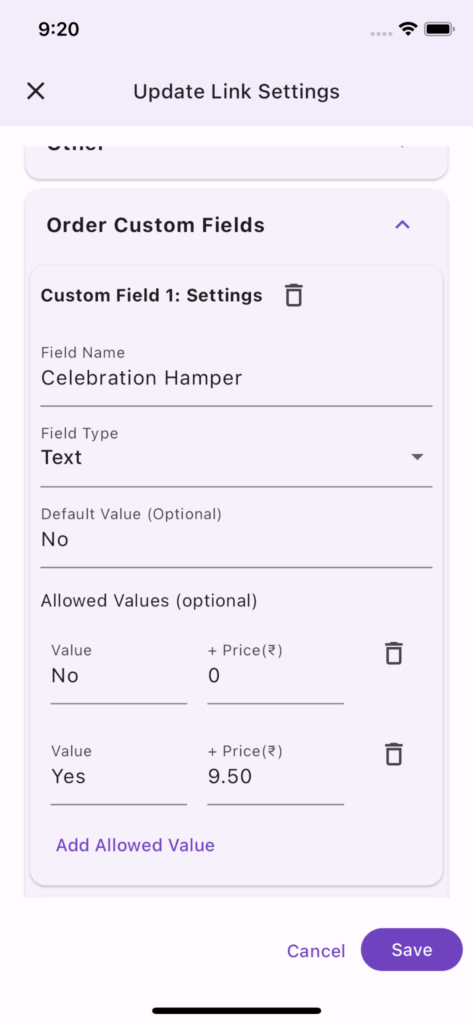
Order Custom Fields help you add order level customization. Example: if you are selling bakery items you can offer add-ons with each order. For example, you can provide celebration hamper along with the order for additional charge.
You can add upto 10 custom fields per site. Each custom field has the following attributes.
Name
This is the name of the custom field displayed to the customer. Example, Frosting, Name on Cake, Size etc.
Type
This can be Text, Date, Number or Whole Number.
Default Value
Indicates default value for this field
Allowed Values
This is available only for Text type. This can be used to create item variants and also add differential pricing for each variant. Example, Frosting can have Whipped Cream, Butter Cream choices for cake and you can specify additional cost for Butter Cream