
Items Management
Items Management
Manage product or service items.
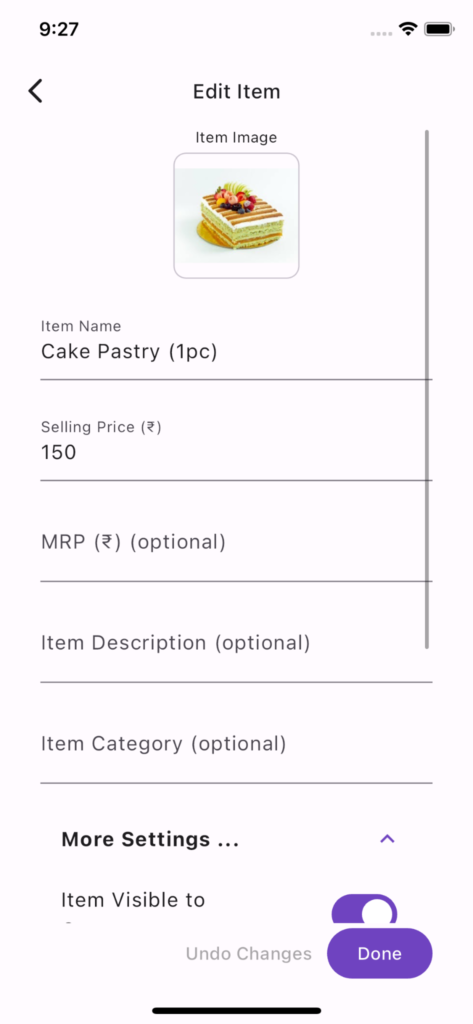
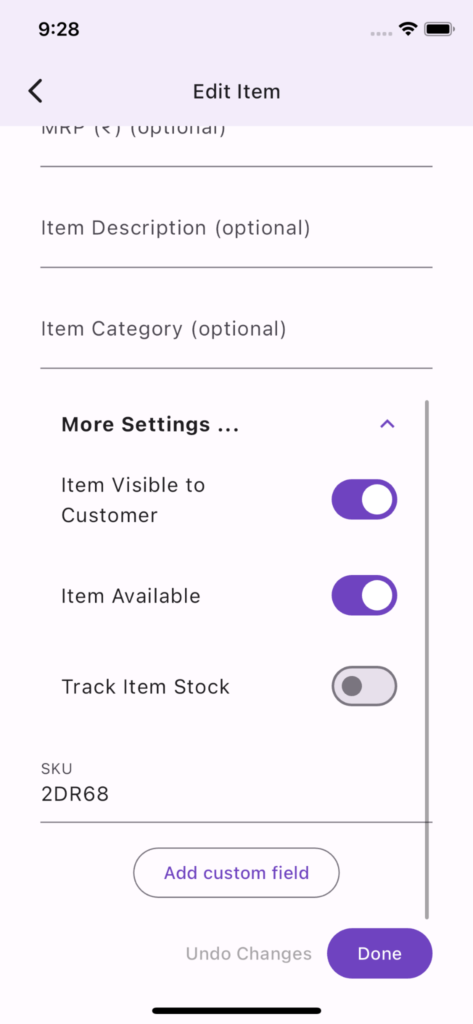
Item Attributes
Item name and selling price are the only required attributes. All other attributes are optional. Item Image(s)
While not required, image(s) are visually appealing. You can add up to 10 images for each item.
Item Name (Required)
Name of the item/product. Item Name needs to be unique across all items. Uniqueness is case insensitive.
Selling Price (Required)
This is the selling price of the item/product. This is inclusive of any taxes or additional charges.
MRP
This is the maximum retail price of the item/product. This is inclusive of any taxes or additional charges. MRP is >= Selling Price
Description
This is a detailed description of the item/product. This is visible only when the customer taps the item/product.
Category
If you have large number of items you can add category for each item. Categories help your customers to easily navigate a large list of items. Category affects the customer view in following ways -
- Customers can filter items based on category
- Items are ordered by category and then by item name
Visible to Customer
This allows you to hide an item temporarily from the customer. Example: lets say you want to add new items, keep all the information ready and then make these visible on the day of launching these new items. Or sometimes you may have too many items as ‘Not Available’ in which case you may just want to hide the items.
Not Available
This forces ‘Not Available’ being displayed in front of the item and customer is not allowed to order the item. It is good to use this flag when an item is temporarily not available.
Track Stock & Add Stock
If you want to track stock for the item, enabled ‘Track Stock’ and then add available stock. Available stock or current stock will automatically decrease based on the orders and the system will not allow ordering an item once it is out of stock. ‘Not Available’ message will be displayed once the current stock reduces to zero. Once you procure more quantities of an item you can use Add Stock attribute to add stock for that item.
SKU
SKU is a unique internal identifier of an item. SKU is not displayed to the customer. System auto generates SKU if not provided. SKU is used for internal analytics as the item name can change over time. It is also useful if you are managing inventory using import/export feature.
All letters in SKUs get converted to upper case.
Position
If present, this attribute is used for arranging the category and items. This attribute is automatically determined when you import items information from CSV based on the position of item row within the CSV.
Custom Fields
Custom Fields help you add item customizations. Example: if you are selling a cake you can offer different types of frosting and even ask the customer to input custom message to be displayed on the cake. You can add upto 10 custom fields per item. Each custom field has the following attributes.
Name
This is the name of the custom field displayed to the customer. Example, Frosting, Name on Cake, Size etc.
Type
This can be Text, Date, Number or Whole Number.
Default Value
Indicates default value for this field
Allowed Values
This is available only for Text type. This can be used to create item variants and also add differential pricing for each variant. Example, Frosting can have Whipped Cream, Butter Cream choices for cake and you can specify additional cost for Butter Cream
Export/Import CSV
When the number of items is large, it can be easier to manage it using a CSV (it can be opened using MS Excel or Google Sheets). In addition to managing large number of items, importing CSV also allows you to use custom ordering of items and categories. You can combine import and in app modifications.
Below is the list of attributes exported in CSV.
Category
Name
Image URLs
SKU
Description
Custom Fields
Selling Price
MRP
Visible to Customer
Not Available
Track Stock
Current Stock (read only)
Add Stock
Import from CSV
-
Name and Selling Price are required columns.
-
Current Stock is a read-only column, available only during export. Any stock addition needs to be done using Add Stock.
-
SKU (case-insensitive) is used to identify item uniqueness. If SKU is not present in import then name (case-insensitive) is used.
-
For multiple images, use a new line separated list of image URLs and enclose them in "" so that CSV format treats it as a single field
-
After importing a CSV you can review the changes and then save the items.
-
While updating an item using import, only the attributes provided in the file are modified.
-
Custom Fields are in json format. It is not recommended to hand edit custom fields. You can copy custom fields from one item to another.
💡 Pro Tip: Export items as CSV, make any changes and then import from CSV. This way you avoid the risk of reverting any change you might have done through app.
💡 Pro Tip: Import functionality allows you to use the item arrangement in the CSV file as the Position attribute of item and accordingly changes the arrangement of categories and items.