
Blog
How to Create and Send a WhatsApp Payment Link in 4 Steps
Learn what a WhatsApp payment link is and how to create, send and confirm one in 4 steps, with UPI, card and net banking options compared.
Published October 27, 2026
A WhatsApp payment link is a web address that opens a checkout for a fixed amount, and you paste it into a chat. To use one, pick a provider that supports UPI and cards, create a link for the exact amount, send it with a short message, and confirm the payment before you deliver. Once your account is approved, the whole process takes a few minutes.
Most small sellers skip this. They send a UPI ID or bank details, wait for a screenshot, and then scroll back through a long chat to match it with an order. Amounts get mistyped, screenshots can be faked, and your evening disappears into follow-up messages.
This guide explains what a payment link is and which providers and payment methods support one. Then it walks through four steps: choose a payment route, create the link, send it in WhatsApp, and confirm the payment. Pi-Square is a commerce platform for WhatsApp sellers, so some examples use it. The steps work with any provider.
What a WhatsApp payment link is and how it works
A WhatsApp payment link is a shareable URL that opens a checkout for a set amount. The customer taps it, chooses UPI, a card or net banking, and pays. The money reaches your provider account first, then settles to your bank on the provider’s schedule.
Plain link or native widget
There are two versions, and they feel different to the customer. A plain link shows up as a preview card, and tapping it opens the checkout in a browser. It works from the regular WhatsApp app and from WhatsApp Business. A native widget shows your business name, the exact amount, the accepted payment methods and the link’s validity inside the chat, so the customer pays without leaving WhatsApp. Meta describes this in its documentation on payment links for the WhatsApp Business API. It needs API access through a provider, so most small sellers start with plain links.
Why a link beats a UPI ID
A link removes the three errors that cost sellers the most: wrong amounts, missing references and fake screenshots.
| UPI ID or bank details | Payment link | |
|---|---|---|
| Amount | Customer types it, can be wrong | Fixed by you |
| Order reference | Lives only in the chat | Written into the link description |
| Proof of payment | Screenshot | Status in your dashboard |
| Methods | The one the customer already uses | UPI, cards, net banking, depending on provider |
| Matching to orders | Manual | Each link maps to one request |
A payment link turns “I think they paid” into a status you can check.
Step 1. Choose a provider and payment methods
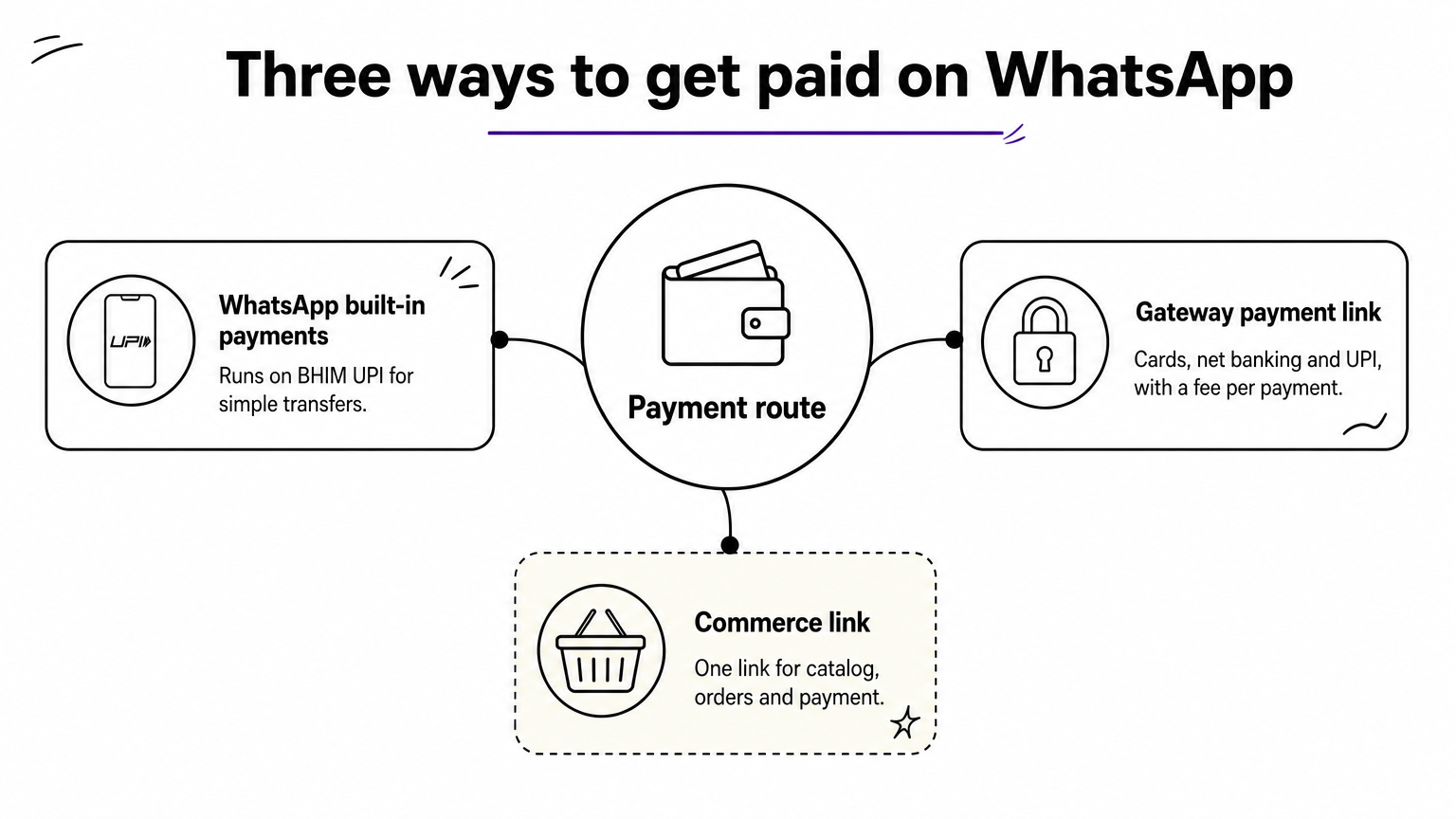
You have three routes: WhatsApp’s built-in payments, a payment gateway link, or a commerce link from a seller platform. Choose by how many orders you handle and whether you need records tied to each order.
Compare the three routes
| Route | How it works | Methods | Best for |
|---|---|---|---|
| WhatsApp’s built-in payments | Runs on BHIM UPI with payment partners in India | UPI | Simple transfers with no order tracking |
| Gateway payment link | Gateways such as Cashfree and PayU issue links, and some offer in-chat payments through the WhatsApp Business Platform | UPI, cards, net banking, often wallets | Fixed-amount requests and invoices |
| Commerce link (Pi-Square) | One link holds your catalog, orders and payment, with a payment gateway or manual tracking of cash and UPI | UPI or depends on payment gateway | Sellers who take orders in WhatsApp chats |
Methods always depend on the provider and on your account approval. Check the checkout on your own phone before you promise a method to a customer.
What it costs and what to check
Gateway fees are typically around 2% of the order value, though the exact rate depends on the gateway. You pay that fee to the gateway, not to Pi-Square. On a ₹1,500 order, a 2% fee is ₹30, so you receive about ₹1,470 before any taxes on the fee. Before you sign up, check:
- The fee per payment and any setup or monthly charge
- Which payment methods are switched on for your account
- How many days settlement takes
- What business or bank documents the provider asks for
Cost comparison: gateway alone or with Pi-Square
A gateway collects the money. Pi-Square adds the order, invoice and payment records around it. Here is how the setups compare:
| Mechanism | Cost | Strengths | Limitations |
|---|---|---|---|
| Payment gateway only | Around 2% of each order (about ₹30 on ₹1,500), set by the gateway | Accepts UPI, cards and net banking. Issues fixed-amount links | You match payments to orders yourself. No catalog or order management. Invoices and partial payments depend on the gateway’s own tools |
| Pi-Square with a payment gateway | Gateway fee of around 2%, plus Pi-Square: Free (₹0, 100 orders a month) or Pro (₹300 a month, unlimited orders) | One link for catalog, orders and payment. GST compliant invoices, payment tracking for every order, advance or partial payments for bookings, plus coupons and WhatsApp upsells | You pay the gateway fee, and methods depend on the gateway you connect and its approval |
| Pi-Square without a payment gateway | No transaction fee. Manual tracking is free, on the Free plan (₹0) or Pro (₹300 a month) | Record cash, UPI and other modes against each order. Keep GST compliant invoices, order status and a daily sales dashboard in one place. No gateway approval needed | The customer pays outside the checkout, so you confirm each payment yourself. No automatic card or net banking collection |
If you take few orders and mostly get UPI or cash, manual tracking costs nothing. If customers expect to pay by card, connect a gateway and keep the records in Pi-Square.
Pick the provider whose checkout you would be happy to pay on yourself.
Step 2. Create the link
Create the link in your provider’s dashboard or app by entering the amount, a description with an order reference, and an optional expiry date. Then copy it. Every provider uses nearly the same flow.
The generic flow
- Log in and open the payment links or payment requests section.
- Choose to create a new link.
- Enter the exact amount.
- Write a description such as “Order #1042, 2 kg chocolate cake” or “March tuition fee”.
- Set an expiry date if the offer is time-bound. Some providers show it to the customer.
- Save and copy the link.
Here is how these steps look in Cashfree, one of the payment gateways you can use to create payment links:
Create one in Pi-Square
In the Pi-Square app, you create your commerce link in minutes, with no technical knowledge. Add products, services or booking items, and choose how you collect payment: a payment gateway or manual tracking of cash, UPI and other modes. Manual tracking is free. The same link can take advance payments for bookings, so a ₹4,000 event booking can ask for a ₹2,000 deposit first. The Free plan costs ₹0 and allows 100 orders a month. Pro costs ₹300 a month with unlimited orders and a custom domain.
One warning: if you rename a Pi-Square link, the old link stops working and someone else can claim it. Choose the name before you share it.
Put the amount and an order reference on every link so each payment explains itself.
Step 3. Send the link in WhatsApp
Open the customer’s chat, paste the link, and add a message that states the item, the total and the order reference. A clear message also makes the link look trustworthy.
A message you can copy
Hi! Thanks for your order. Here is your payment link for
Order #[number]: [item]
Total: ₹[amount]
Pay here (UPI, card or net banking): [link]
The link is valid until [date]. Reply here if anything looks wrong.
Send it from your business number, and make sure the business name on the checkout matches the name your customer knows. That removes most worries about scams.
Save time with Quick Replies
If you use WhatsApp Business, save this message as a Quick Reply under Business Tools, with a shortcut like /pay. Typing the shortcut in any chat inserts the whole message. You then change only the amount, the reference and the link. For repeat items, put the link in the product description in your WhatsApp catalog.
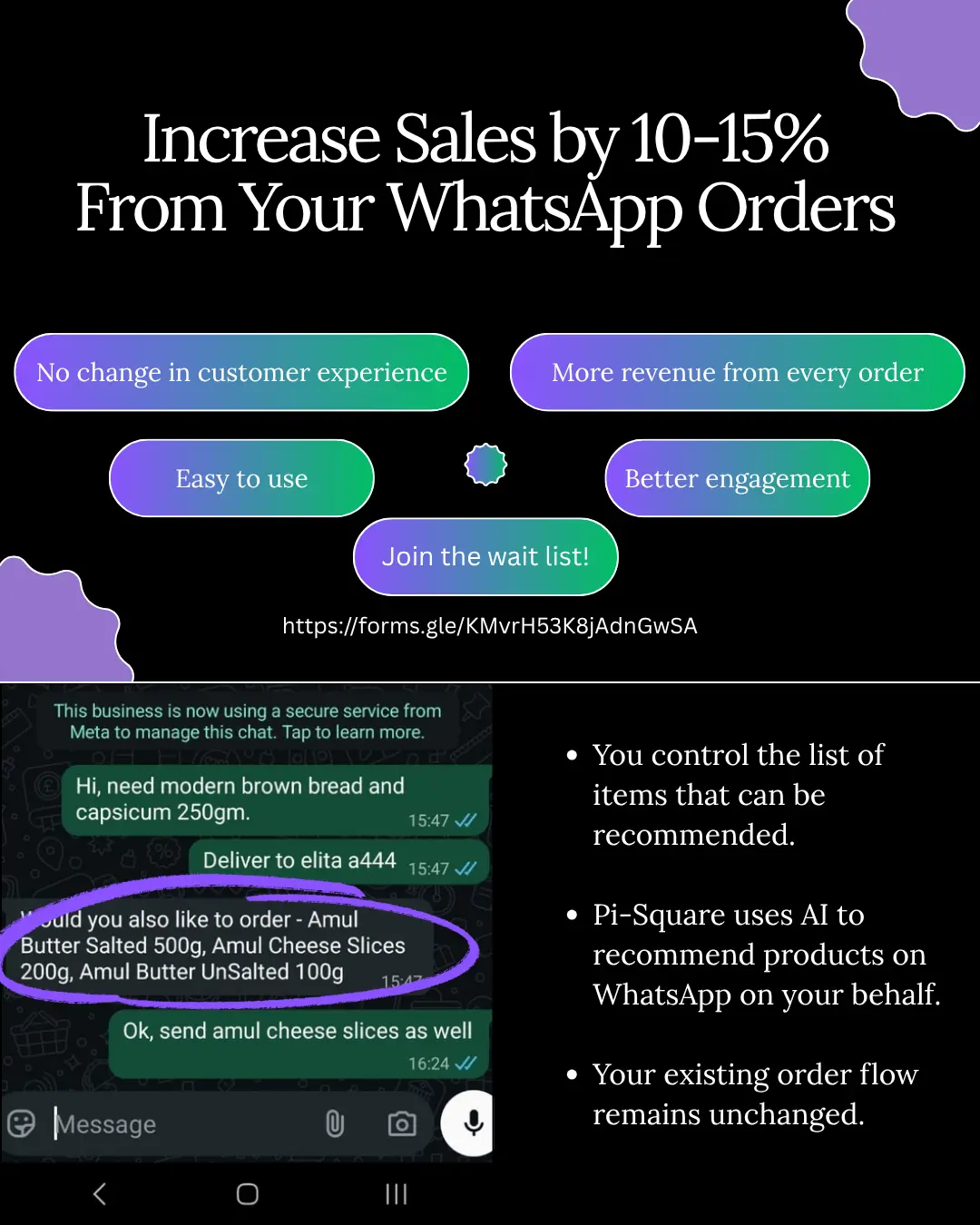
If you connect WhatsApp Business to Pi-Square, WhatsApp Upsells can also suggest add-ons during ordering. A 10% charge applies only to the additional sales it creates.
Send the link only after you and the customer agree on the total.
Step 4. Confirm payment and handle problems
Confirm the payment in your provider’s dashboard or order screen before you ship, bake or book anything. A screenshot from the customer is not proof, because it can be edited, and a pending UPI payment can still fail.
Confirm before you deliver
Check four things: the status says paid, the amount matches the order, the reference matches the description, and the order is marked paid in your records. Pi-Square keeps your direct, WhatsApp and manual orders with fulfillment status in one dashboard, so you do not search through chats. For GST invoices, use your tax advisor’s guidance on what applies to your business.
Fix the common problems
| Problem | Fix |
|---|---|
| Link expired | Create a new link and say the old one is void |
| Payment failed but money left the account | Ask the customer to wait for the bank’s automatic reversal and share the transaction ID with your provider |
| Customer wants another method | Check which methods your account supports, or switch to manual tracking for cash or UPI |
| Customer doubts the link | Share your business name and offer to confirm over a call |
Treat the dashboard, not the chat, as your record of what was paid.
Start collecting inside your chats
A WhatsApp payment link gives you a fixed amount, a clear reference and a status you can trust. Choose a provider that supports the methods your customers use, create a link for each request, send it with a clear message, and confirm the payment before you deliver.
If you already take orders on WhatsApp, you can keep that habit and add structure around it. Create your commerce link on Pi-Square, start on the free plan, and send your first payment request today.