Blog
ONE Line Payment Link: How to Pay a Shipping Invoice Online
Find the ONE Line payment link and pay your shipping invoice online. Follow four steps in the ONE FINANCE Hub, from sign-in to receipt.
Published November 25, 2026
The ONE Line payment link you are looking for is the ONE FINANCE Hub on the Ocean Network Express eCommerce site. Open one-line.com/one-ecom/finance/hub, sign in with your eCom account, and open the Outstanding Payment card. Select the invoices or bills of lading (BLs) you want to settle, choose a payment channel, and finish on the payment provider’s page. You then get a confirmation and can download a receipt.
The search is confusing because the results are a mix of carrier advisories, country pages, cookie notices and older ePayment pages. None of them tells you which button to press for your invoice. If you ship goods for your business, a late freight payment can hold up your cargo, so you want the right page the first time. Phishing is also a risk with payment pages, so you want to be sure you are on the official site.
At Pi-Square we help small sellers in India run orders, payments and invoices. This guide covers the four steps you need: sign in, find the charge, pay, and confirm the payment. It also explains what to have ready and what to do when an amount looks wrong.
What the ONE payment link is and what you need first
ONE does not send a separate link for each invoice. You pay through the ONE FINANCE Hub, which brings invoices, payments, statements and disputes into one place. Having the right documents and access ready before you start saves most of the trouble.
Where the payment page lives
Go to the ONE eCommerce site and choose Finance in the top navigation, or type the Hub address into your browser yourself. The Hub landing page is open to everyone. Each service inside it then has its own access level: an eCom login, a one-time passcode for delegated partners, or no sign-in at all.
The Hub combines what used to be two tools, ONE Finance and ONE ePayment. If you land on an older ePayment page, you will see a create-PO and pay-PO style flow. Go to the Hub if you can, because every service card there states its access requirement before you click.
There is no per-invoice link: the ONE FINANCE Hub is the payment page, and you reach it from the eCommerce site.
What to have ready
Gather these before you open the Hub:

- Your ONE customer code, which registration needs.
- The BL number, invoice number or PO number for the charge.
- Your eCom login, or the email address you will use for a one-time passcode.
- A current browser: Chrome, Edge, Safari or Firefox.
- Your payment method. Available channels vary by country, and the Hub shows the ones for your market.
Step 1. Open the Hub and sign in
To pay an invoice online, you need an eCom account tied to your customer code. If you do not have one, register first. If you only need to download a one-off document, you can use a lighter path.
Register for an eCom account
Select Sign Up on the ONE eCommerce site and fill in your company details and ONE customer code. Your local ONE office reviews the request, and approval typically takes some days. You then receive an activation email and set your password from the link in it.
If your company already has an eCom account, do not register again. Ask your company administrator to add you as a user, which keeps your customer code entitlements aligned. For anything that stalls, contact your local ONE customer service office.
Use the one-time passcode path
Some services work without an account. When you hold a specific document reference, such as a one-off invoice or receipt, you enter the reference and your email and ONE sends a one-time passcode. Delegated partners also use this route, which lets you view invoices of companies that gave you payment rights and pay on their behalf.
Type the Hub address yourself or use the Finance menu on the official ONE site. Do not pay through a link in an unexpected email or chat message.
Sign in with your eCom account for regular payments, and keep the passcode path for one-off documents and delegated payments.
Step 2. Find the invoice and check the amount
Open the Outstanding Payment card to see your unpaid invoices, BLs and overdue charges on one screen. Check the amount against your own records before you pay, because the Hub does not let you edit it.
Locate the right charge
If the list is long, search by PO number or BL number to pull up the specific charge. The Hub also covers cases where no final invoice exists yet. The table below shows which situation matches which feature.

| Your situation | What the Hub lets you do |
|---|---|
| Open invoices are due | Select one or several invoices or BLs and pay in one transaction |
| No final invoice yet | Make an advance payment using your BL as the reference, with an amount you enter |
| Container needs a deposit | Pay equipment and security deposits online |
| You pay for another company | Pay delegated invoices after OTP verification |
What to do if the amount looks wrong
Invoices must be settled in full, and the payable amount is fixed at the invoice total. Do not underpay to make a point. Open the invoice and select Raise Dispute, choose a reason, enter the amount you believe is correct, and attach supporting documents.
The Hub generates a dispute case number immediately and flags the invoice as disputed. Your local team then issues a corrected invoice or credit note, or explains why the charge stands.
Never pay part of an invoice: either pay the full total or raise a dispute and wait for the review.
Step 3. Choose a payment channel and pay
You can pay online through a payment provider or by bank transfer. Online payment is the faster route, and the choice you make here decides how long confirmation takes.
Pay online
Follow these steps once you are signed in:
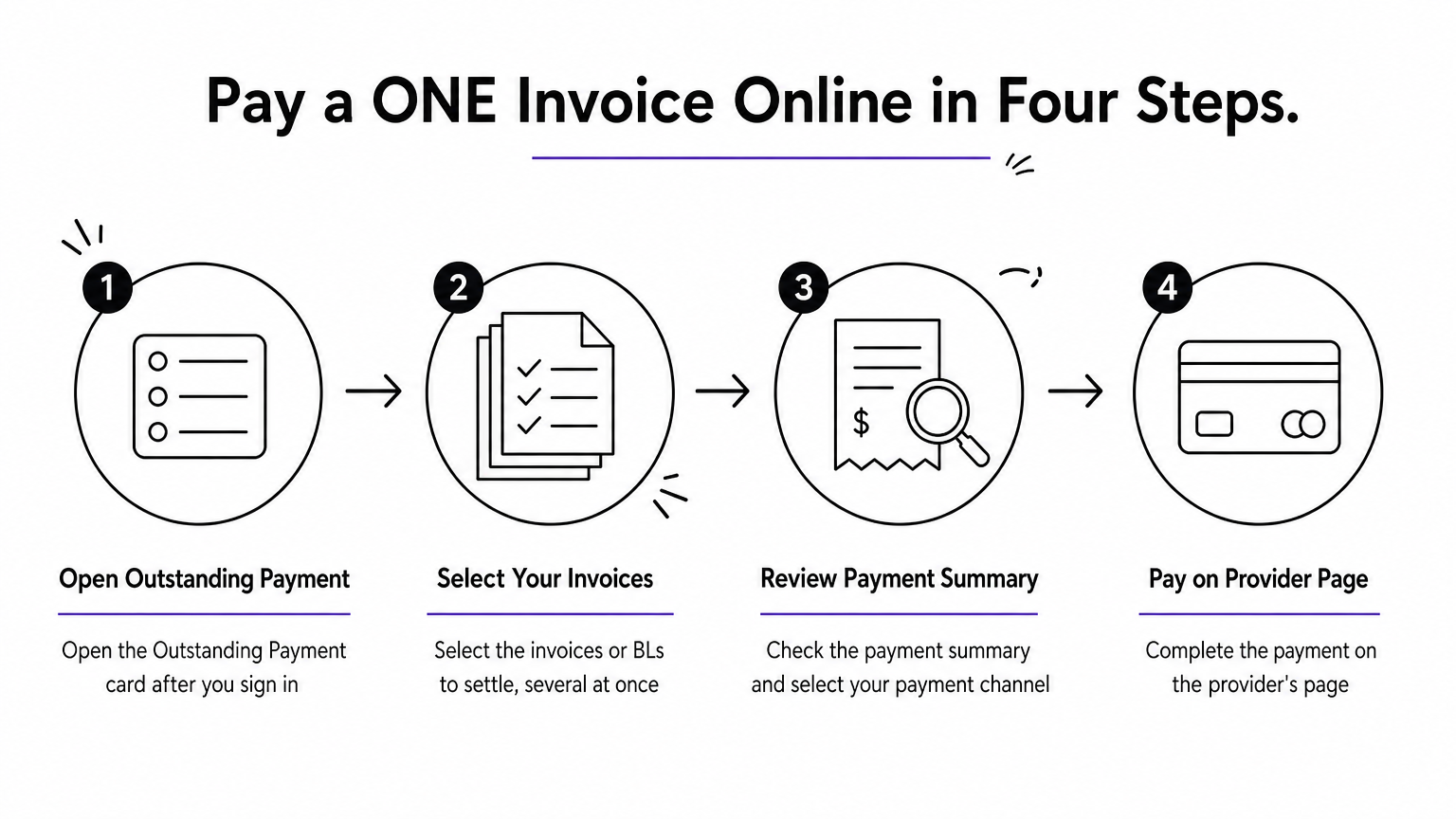
- Open the Outstanding Payment card.
- Select the invoices or BLs to settle. Multiple items can go into one transaction.
- Check the payment summary and select your payment channel.
- Complete the payment on the provider’s page.
Take a worked example. You have two open invoices of 18,500 and 7,250 in your invoice currency. Select both, and the summary shows 25,750 as one payable total. You pay once and get one confirmation instead of two separate payments. Stay on the provider’s page until it shows the result of the transaction.
Pay by bank transfer
Bank transfer is the offline option. Before you send money, confirm the receiving account details with your local ONE office, because wrong account details are the usual cause of lost payments. Keep the transfer reference, since ONE asks for it if the payment does not reflect.
After you transfer, the Hub’s transfer verification feature lets you check whether the money has reached ONE’s account, without contacting support. You can also input your payment items and get validation and clearing suggestions based on live balances.
Pay several invoices in one online transaction, and keep your bank transfer reference until the payment shows as cleared.
Step 4. Confirm the payment and keep your records
After you pay, wait for the status to update, then download the receipt. Do not pay a second time because the first payment has not appeared yet.
Allow the right time
For online payments, the invoice status updates shortly after the provider confirms the transaction. For bank transfers, allow 1 to 2 business days for the funds to be received and matched against your account.
If the payment still does not show after that window, contact your local ONE office with the payment reference and the invoice number. Do not pay again, because a duplicate payment creates a refund problem you can avoid.
Download receipts and statements
Use the receipt search to find a payment by BL number, invoice reference or date. The Hub sends a copy straight to your registered email, and the full transaction history is available once you are logged in.
For your own books, open the Statement of Account card, select the customer code and period, and download it as PDF or Excel. It lists open items, paid items and the outstanding balance. If you manage more than one customer code, generate a separate statement for each.
A cleared invoice, a receipt in your inbox and a matching statement line are your proof that the payment is done.
Pay on time and keep your records tidy
The ONE payment link is not a single URL. It is the ONE FINANCE Hub, where you sign in, select your invoices, pay online or by bank transfer, and download your receipt. Check the amount before paying, raise a dispute instead of underpaying, and never pay twice while a transfer is still being matched.
If you also sell the goods you ship, handling freight costs is only half the job. With Pi-Square you can create a shareable commerce website for your products in minutes, take orders from WhatsApp or direct links, track payments and send GST compliant invoices. It is free to start.